


How the DarLink AI Password Reset Process Works
Regaining access to a locked account is a straightforward process when you know the correct steps. The DarLink AI platform follows a standard email-based recovery flow, which is consistent with data privacy best practices and consumer protection expectations under UK law. Before contacting support, it is worth working through the self-service options, as these are typically the fastest route back to your account.
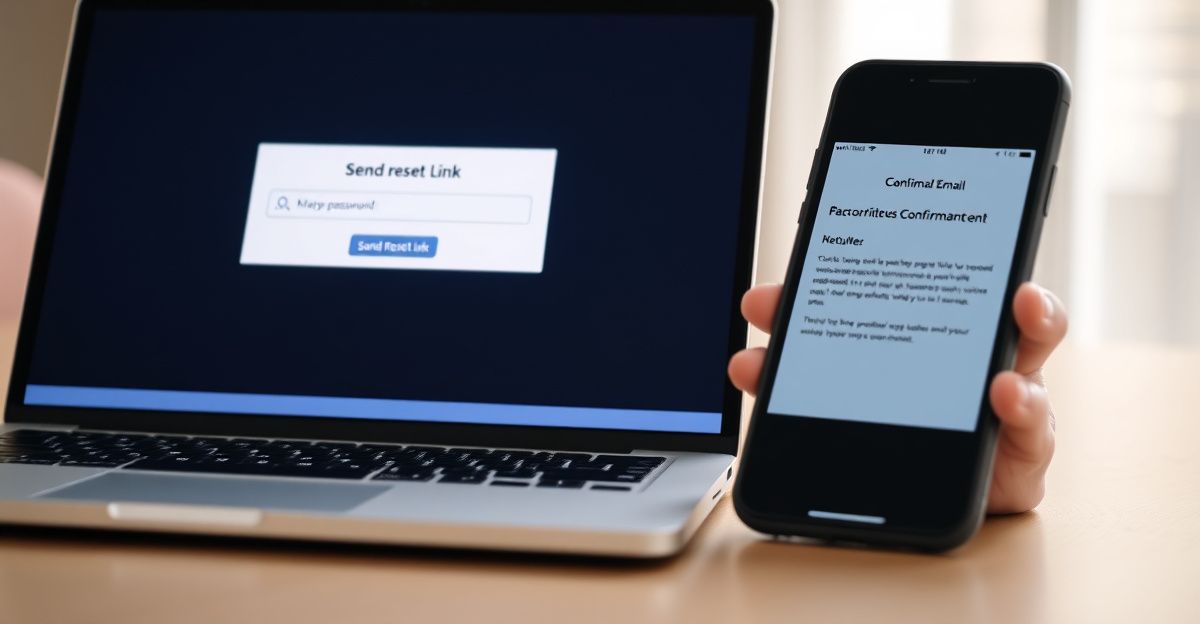
Start by navigating to the DarLink AI login page. Below the password field, you will find a 'Forgot Password' or similar prompt. Click that link and enter the email address associated with your DarLink AI account. The platform will send a time-limited reset link to that address. Most platforms of this type set a window of 15 to 60 minutes before the link expires, so it is best to act promptly.
Once you receive the email, click the link and enter a new password. Choose something distinct from your previous credentials and avoid reusing passwords from other services. A strong password typically combines uppercase and lowercase letters, numerals, and at least one special character, and runs to at least 12 characters in length.
What to Do When the Reset Email Does Not Arrive
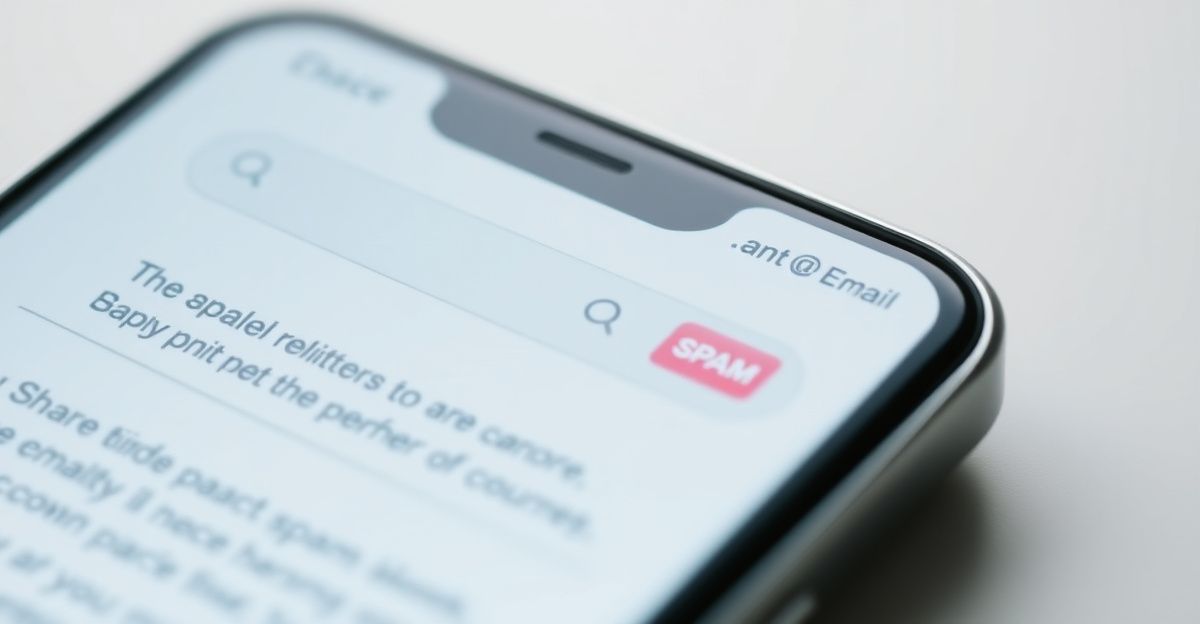
A missing reset email is one of the most common friction points in account recovery, and there are several practical checks to run before escalating to support. First, look in your spam or junk folder, as automated emails from platforms are frequently filtered there by mail clients. Second, confirm you are checking the correct inbox, particularly if you manage multiple email addresses.
If neither check resolves the issue, consider whether you registered using a third-party login such as a Google account. DarLink AI's terms of service note that users may register via a third-party login rather than a direct username and password combination. In that case, the password reset must be completed through the third-party provider, not through DarLink AI directly. Resetting your Google password, for instance, will restore your ability to log in via that route.
Where self-service options are exhausted, the appropriate next step is to reach out through DarLink AI customer support. Based on information visible in public forums, the platform handles certain account requests via email, so prepare to verify your identity with account details such as your registered email address and any billing information you have on record.
Security Considerations During Account Recovery
Account recovery is a moment of heightened risk from a security perspective. Phishing attempts often mimic legitimate reset emails, so it is worth verifying that any email you receive originates from an official DarLink AI domain before clicking any link. Check the sender address carefully, and if in doubt, type the platform URL directly into your browser rather than following a link.
Working regularly with compliance and risk assessment resources across various platforms has given me a practical appreciation for how account security intersects with data privacy obligations. Last August, while setting up access to a compliance document library used by regulatory researchers across the UK, the onboarding process required professional verification documentation processed within 48 hours. That experience reinforced how structured account management, including clear password policies and recovery flows, directly supports compliance with frameworks such as GDPR. Organisations handling personal data, as DarLink AI does, are required under GDPR, which has applied in the UK since 2018 via the UK GDPR, to implement appropriate technical measures to protect user accounts. A well-designed password reset flow is one such measure.
After regaining access to your account, consider enabling any available two-factor authentication (2FA) options. This adds a second verification layer that significantly reduces the risk of unauthorised access, even if your password is compromised in a future data incident.
Troubleshooting Persistent Login Problems
If you complete the reset process but still cannot log in, the issue may lie outside the password itself. Browser-related problems, such as cached credentials or outdated cookies, can block a successful login even after a valid reset. Clear your browser cache and cookies, then attempt to log in again using the newly set password.
Trying an alternative browser or an incognito window is a useful diagnostic step. It isolates the problem from browser extensions or stored data that might be interfering with the login flow. If the problem persists across multiple browsers, the issue is more likely account-side, and contacting support with a clear description of the steps already taken will speed up resolution.
Related searches suggest some users experience a 'password reset not working' scenario specifically, which can sometimes stem from typing errors when entering the new password, particularly on mobile devices where autocorrect may alter characters. Typing the password into a visible text field first, then copying it across, helps eliminate that variable.
Comments
No comments yet.
Leave a comment
Your email will not be shown. Comments are reviewed before they appear.